

To connect a domain to your website, you change its DNS settings at the place you bought it so that the domain points to your website's server. There are two ways: change the nameservers (hand all DNS to the website platform) or add records (usually an A record for the main domain and a CNAME for www) while keeping DNS where it is. Your website platform tells you which values to use. Changes take from a few minutes up to about 24 hours to spread, after which a free https certificate is normally set up automatically.
Buying a domain takes five minutes. Making it show your website is where many people get stuck, usually because the instructions are full of words like nameserver, A record, CNAME and TTL. They are simpler than they sound. This guide explains what DNS does in plain language, when to change nameservers and when to add records, the exact steps, how long it takes, and the common mistakes, including the one that quietly breaks your business email.
In this article
What DNS does
Computers find each other by numbers (IP addresses), not names. DNS, the Domain Name System, is the internet's phone book: it turns yourshop.com into the address of the server that holds your website. When you connect a domain, you are simply writing a new entry in that phone book.
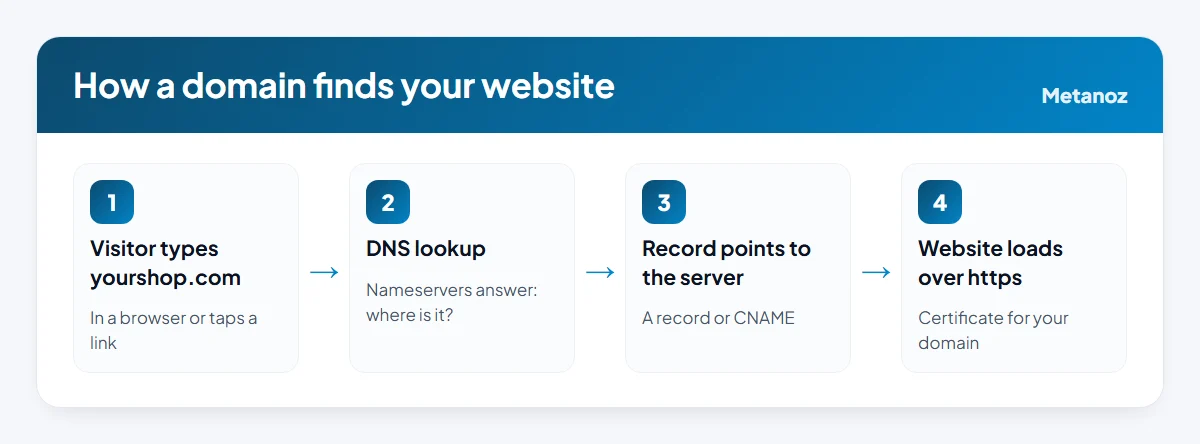
Three parties are involved, and it helps to keep them apart:
- Domain seller (registrar): where you bought and renew the domain. For a .com this could be any registrar; for .com.bd it is BTCL or one of its partners.
- DNS host: the service whose nameservers answer questions about your domain. By default this is usually the domain seller, but it can be moved.
- Website host: where your website actually lives, for example your website builder.
Nameservers vs records
Option 1: change the nameservers
You tell the domain seller, "from now on, these nameservers are in charge of my domain." All DNS for the domain then lives with the new provider. This is simple and hard to get wrong, but anything that was set up at the old DNS host, especially email records, must be recreated at the new one or it stops working.
Option 2: add or edit records
You keep DNS where it is and only change the entries that point the website to its new home. The common record types:
| Record | What it does | Typical use |
|---|---|---|
| A | Points a name to an IP address | The main domain (yourshop.com, often written as @) |
| CNAME | Points a name to another name | www.yourshop.com |
| MX | Says where email for the domain goes | Business email (do not delete) |
| TXT | Holds text for verification and email security | Google verification, SPF, DKIM |
Which one should you choose? If the domain is new and nothing else uses it, either works; follow whatever your website platform recommends. If you already have email on the domain, adding records is usually safer, because your email settings stay untouched.
TTL (time to live) is how long other computers may remember an old answer before asking again. A lower TTL makes changes show up sooner. You can usually leave the default.
Step by step
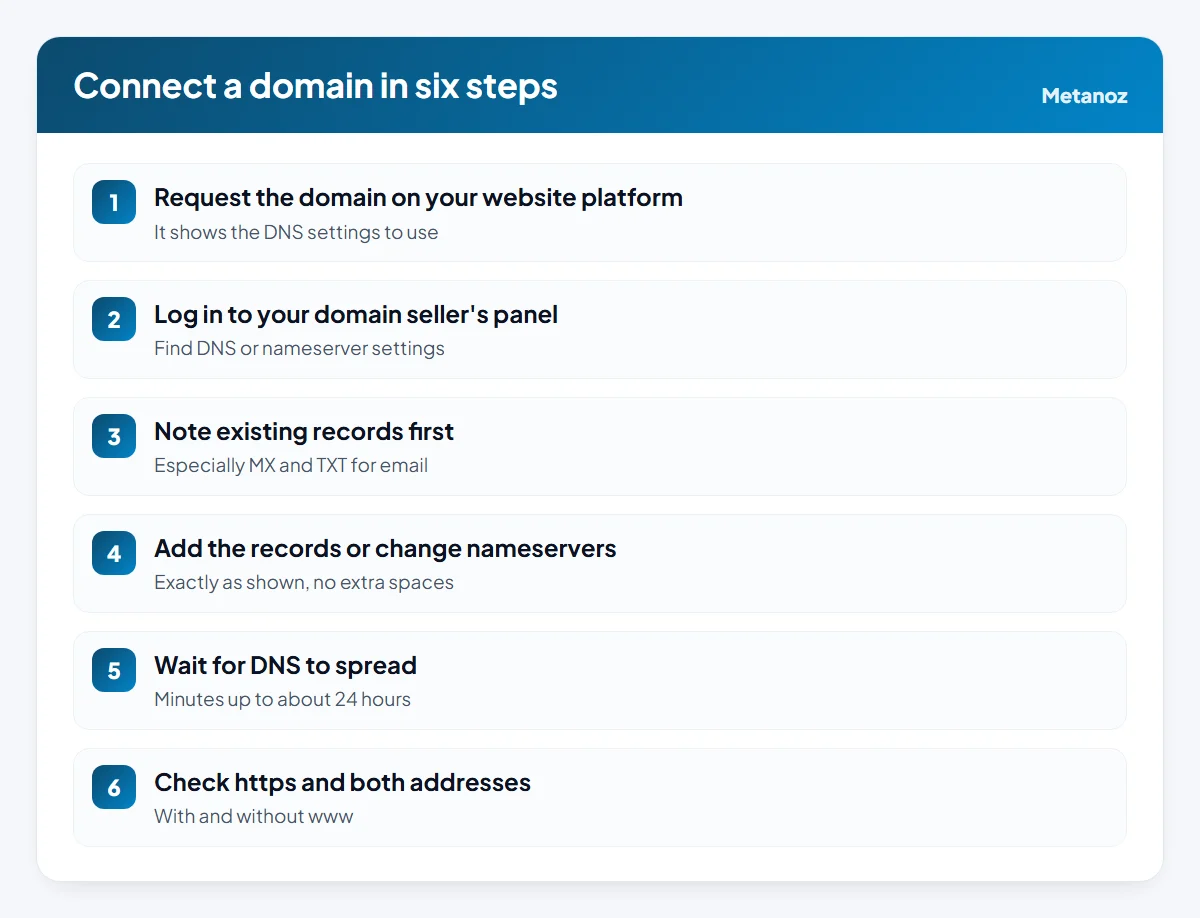
- Request the domain on your website platform. On Metanoz, open Admin → Website, enter the domain under "Connect domain" and send the request. The same screen shows the DNS settings (nameservers or records) to use.
- Log in to your domain seller's panel and open the DNS, "DNS management" or "nameservers" section for the domain.
- Write down what is already there. Take a screenshot of the existing records, especially MX and TXT. If something goes wrong, you can put them back.
- Make the change exactly as shown. Either replace the nameservers, or add the A and CNAME records. Remove any old A record for the same name that points somewhere else; two conflicting A records cause the site to load only sometimes.
- Wait. The Metanoz team checks the request and switches the domain on. DNS changes can take from a few minutes up to 24 hours to spread.
- Check. Open both
yourshop.comandwww.yourshop.com, on mobile data and on Wi-Fi. Look for the padlock.
The Metanoz help article on connecting your own domain has the same steps with screenshots. Once the domain is live, a secure https connection is set up for it automatically, and your yourname.metanoz.com address keeps working too. Connecting a domain is available on every plan; Metanoz does not sell domains, so you buy yours from any seller in your own name.
How long it takes
"Propagation" means the time it takes for DNS servers around the world to pick up your change. Often it is a matter of minutes; sometimes it takes hours, because some networks remember the old answer until its TTL runs out. During that time, you may see the new site while a friend on another network still sees the old one. That is normal.
If the browser says "Not secure" right after connecting, it usually means DNS is still spreading and the certificate has not been issued yet. Wait a few hours. If it is still there after that, contact support. See SSL and subdomain questions for details.
Common mistakes
- Changing nameservers and losing email. If your email (for example on Google Workspace or your hosting company) used MX records at the old DNS host, recreate them at the new one, or keep the nameservers and add records instead.
- Leaving an old A record in place. Two A records for the same name, pointing to different servers, make the site appear and disappear.
- Forgetting www. People type both. Make sure
wwwhas its CNAME and both versions open the site. - Typing extra characters. Some panels add your domain automatically. Entering
www.yourshop.comin a field that already appends.yourshop.comcreateswww.yourshop.com.yourshop.com. - Proxy or forwarding services in the middle. If your DNS is on a service that proxies traffic or offers "URL forwarding", turn forwarding off for the website records, unless your platform says otherwise.
- Domain in someone else's account. If a developer bought the domain in their account, you will need them to make the change. Move the domain into your own account when you can.
If you have not bought a domain yet
Buy it in your own name, with an email you check, and note the renewal price as well as the first-year offer. Our guide to buying a domain in Bangladesh covers sellers, payment and renewals, and if you want a .com.bd address, read .com.bd ডোমেইন: কাগজপত্র ও কেনার নিয়ম (in Bangla) for the paperwork. After the domain works, you can set up an address like [email protected]; see the help article on sending email from your own address.
Start your website today
Pick a template and a name; Metanoz sets up the rest. 7 days free, no card needed.
Start freeSee templatesFrequently asked questions
Should I change nameservers or add records?
Follow your website platform's recommendation. If the domain already has email or other services, adding records is usually safer because existing email records stay where they are.
How long does it take for a domain to connect?
Usually minutes to a few hours, and up to about 24 hours in some cases while DNS changes spread across networks.
Will connecting my domain to a website break my email?
Not if you leave the MX and related TXT records in place. Email usually breaks when nameservers are changed and the email records are not recreated at the new DNS host.
Do I need to buy an SSL certificate?
Many website platforms issue a free certificate automatically once the domain points to them. On Metanoz, https is set up automatically for both your metanoz.com address and your connected domain.
Can I connect a .com.bd domain?
Yes. A .com.bd domain is connected the same way, by changing its DNS settings in the panel where it is registered.
What happens to my old metanoz.com address after I connect a domain?
It keeps working. Visitors can reach your site through either address.
 ডোমেইন কেনার নিয়ম: .com নাকি .com.bd, কোথা থেকে কিনবেন, কত খরচ
 How to Buy a Domain in Bangladesh: .com vs .com.bd, Prices and Pitfalls
 ওয়েবসাইট স্লো কেন? স্পিড বাড়ানোর ১০টি কার্যকর উপায়